



How can I add a new trading segment to my Samco account?
To begin trading in additional segments such as Equity Derivatives, Currency, or Commodities, it’s essential to first activate those segments in your SAMCO demat account. This ensures you’re fully compliant and authorized to trade in these markets.
This blog provides a comprehensive, step-by-step guide to the process of activating additional trading segments
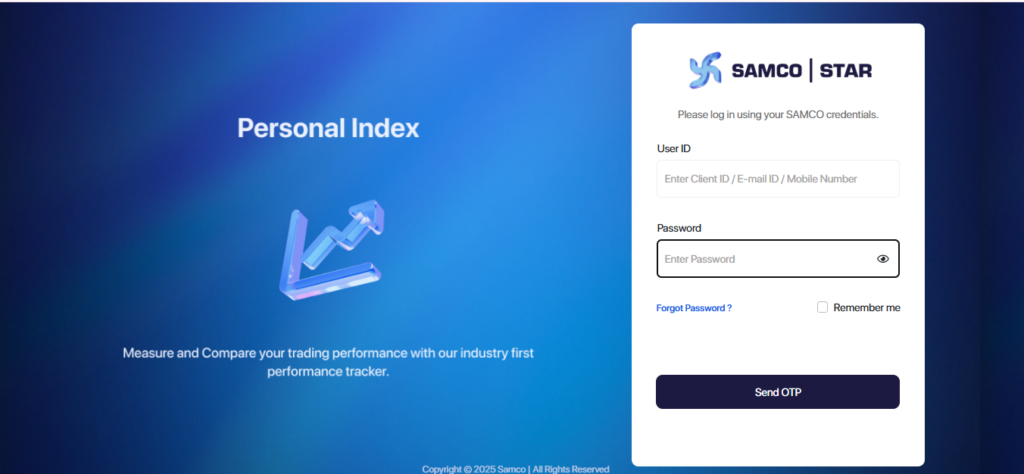
Step 1: Log In to Samco Star Back Office
- Start by heading over to the official Samco Star Back Office portal.
- Use your Samco credentials to log in.
Note: The credentials for the Samco Star Back Office and the Samco Mobile App are different.For Star Back Office, the password can either be your PAN number or the password you have set specifically for the Back Office.
Step 2: Verify with OTP
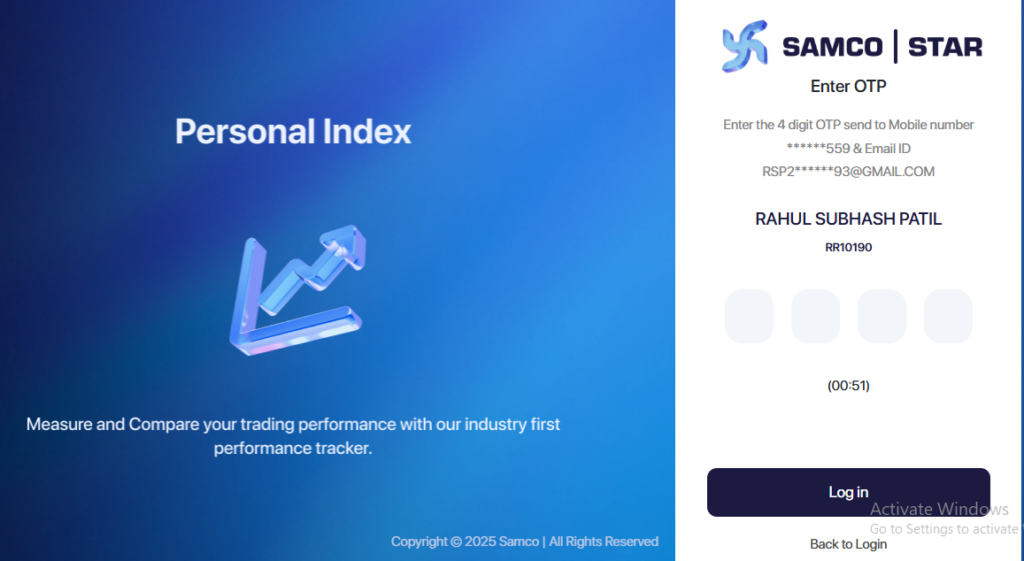
After entering your login details, click on Send OTP.
You’ll receive a One-Time Password (OTP) on your registered mobile number or email ID.
Enter the OTP
Note: The OTP is valid for 10 minutes, so make sure to enter it promptly
Step 3: Access Your Account Settings
Once you’re logged in:
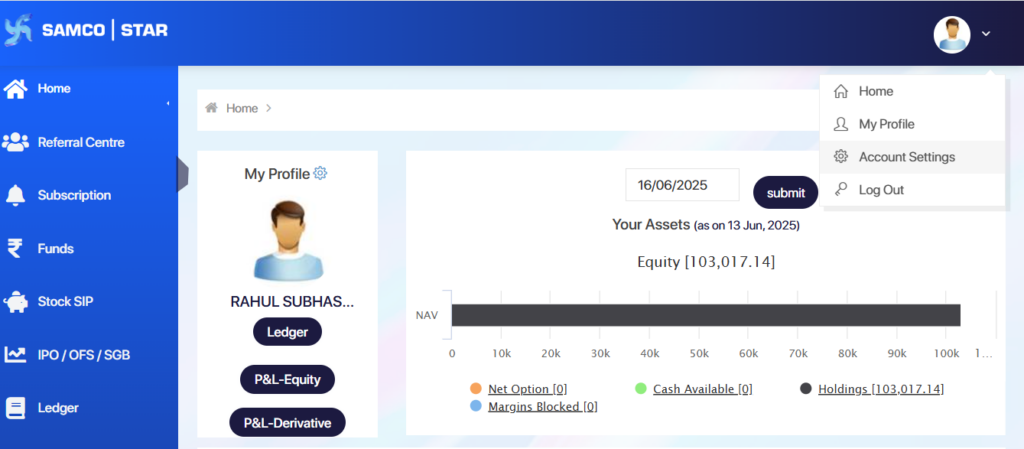
- Look to the top-right corner of your screen.
- Click on your Account Holder Name.
- A dropdown menu will appear.
- From the dropdown, select Account Settings to proceed.
Step 4: Choose the Modification Option
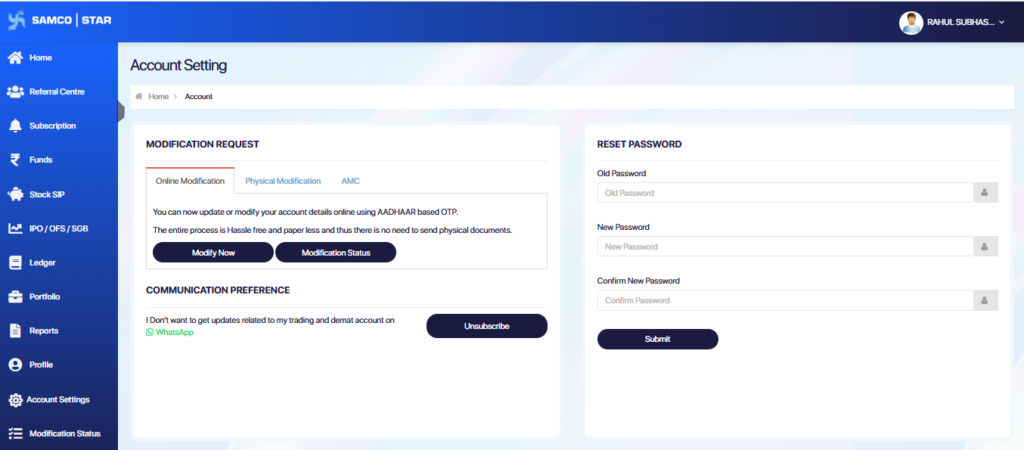
In the Account Settings section:
- Look for the Modify Now button and click on it
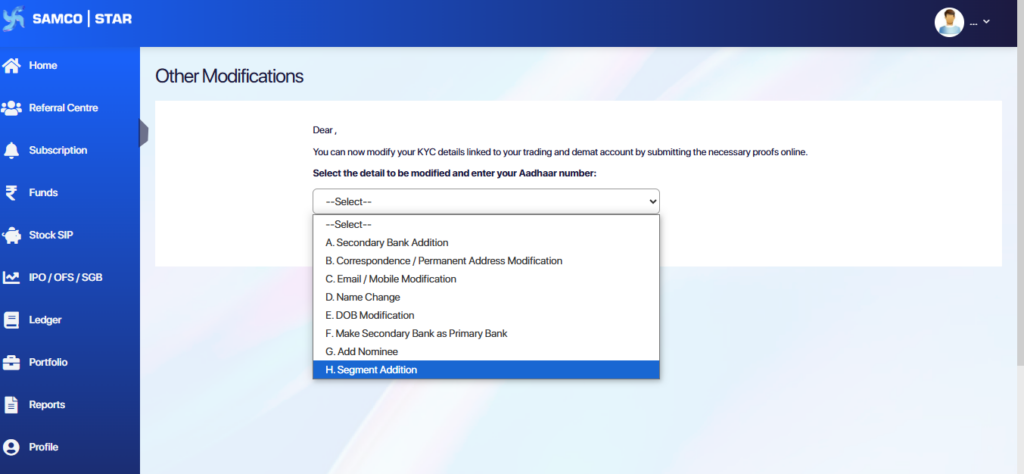
Step 5: Select Segment Addition from the Dropdown
- A dropdown menu will appear with various modification options.
- From the list, choose the option labeled Segment Addition to proceed with activating additional trading segments.
Step 6: Choose the Segment to Activate
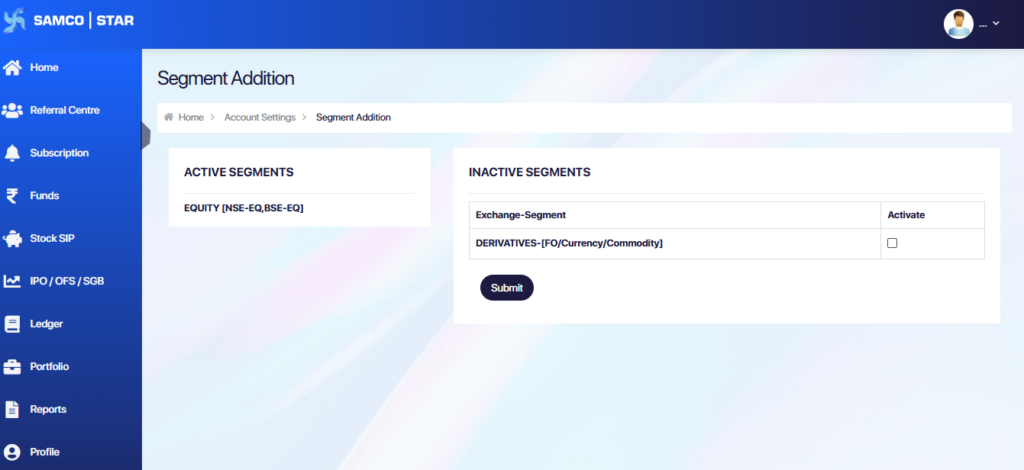
Go to the Segment Addition section under Account Settings.
You’ll see two sections:
- Active Segments – shows segments already enabled in your account.
- Inactive Segments – lists the segments available for activation (e.g., DERIVATIVES (F&O), Currency, Commodity).
Tick the checkbox next to the desired segment.
Click the Submit button to proceed with your activation request.
Step 7: Income Proof Verification via OTP or Upload
After selecting your desired segment(s) and clicking Submit, the system will verify your eligibility based on your Samco account holdings.
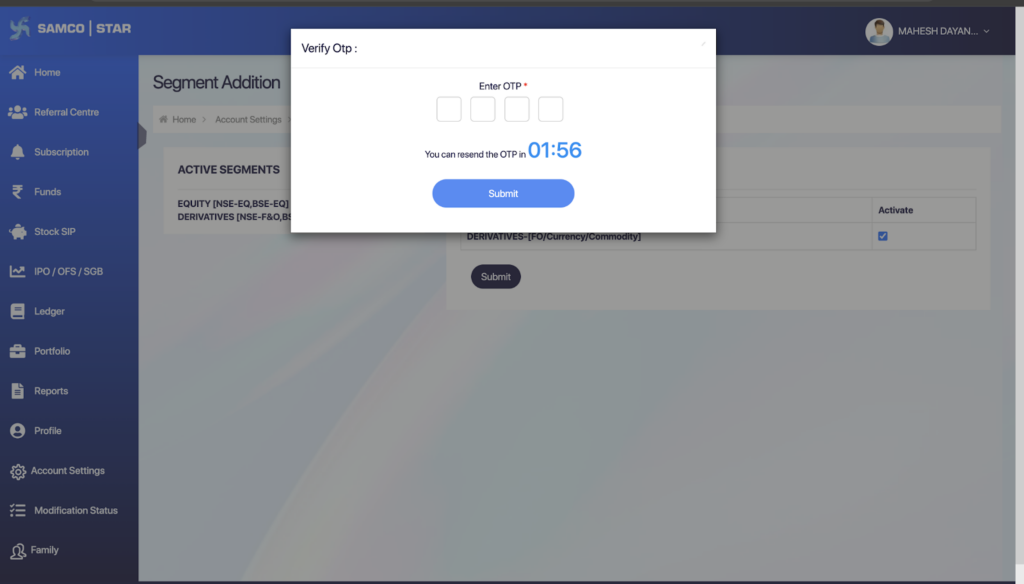
If you already have holdings in your Samco account:
You do not need to manually upload income proof. The system will automatically fetch the required details. Simply enter the OTP sent to your registered mobile number to verify and proceed.
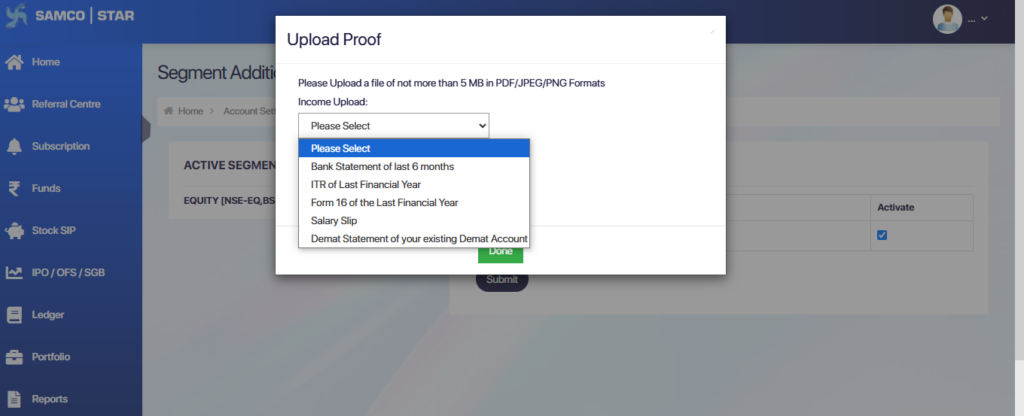
If you do not have any holdings in your Samco Account:
You will be prompted to upload income proof. From the dropdown, choose one of the following valid documents:
- Bank statement (last 6 months)
- Income Tax Return (ITR) of the last financial year
- Form 16 of the last financial year
- Latest Salary Slip
- Demat Statement from another demat account
After uploading the document, click Done to proceed with activation.
Step 8: Track Your Request via the Modification Status Panel
Once you’ve submitted your date of birth update request along with the necessary documents, it will enter the verification process. To stay informed about the progress, simply navigate to the ‘Modification Status’ tab in your Samco STAR Back Office.
Here, you’ll find real-time updates on whether your request is under review, approved or rejected.
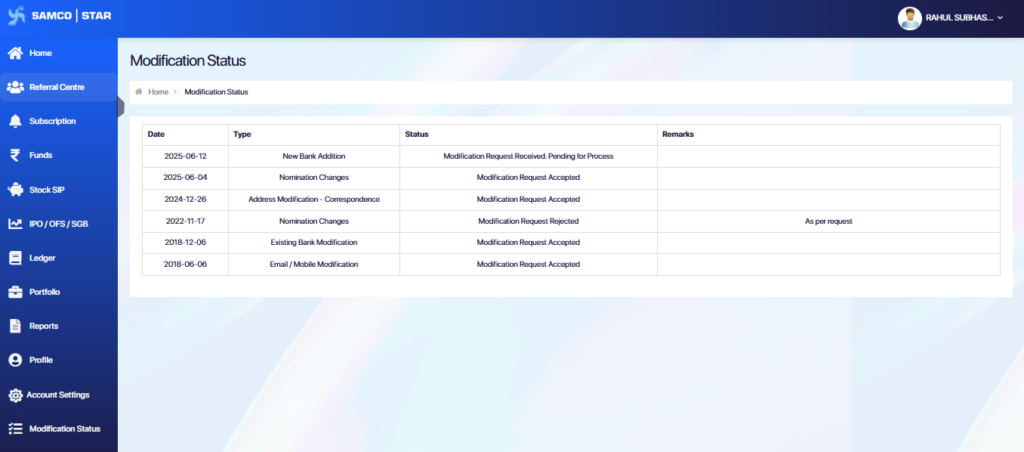
Note: The Turnaround Time (TAT) for modification completion without deficiencies is up to 48 working hours after submitting the request successfully.
Still have questions? We've got you
Just raise a ticket and our support team will get back to you with exactly what you need.