


How can I change the bank account linked for my payouts on the Partner Portal?
Your payouts are credited to the bank account shown under Bank Details in My Profile. You can change it through a quick, secure verification powered by Digio, except during the monthly payout window.
Where to find it: Profile icon > My Profile > Bank Details > Edit Details
Steps
- Click the profile icon at the top right and select My Profile.
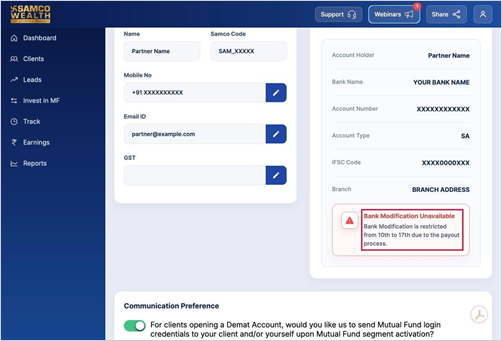
- Under Bank Details, click Edit Details. During the payout window, a Bank Modification Unavailable message is shown instead.
- Choose how you want to verify: UPI Based authentication, or by entering your bank account number and IFSC code.
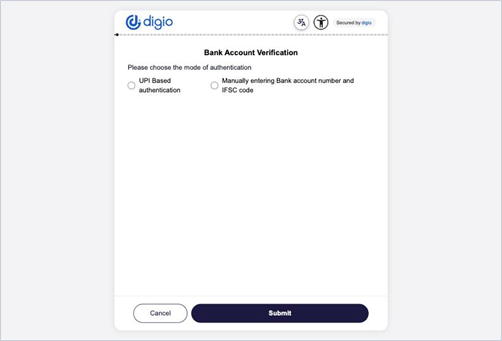
- Complete the steps and click Submit.
- If the name on your bank account does not match your PAN, you will be asked for a supporting proof. Enter your name as per PAN, upload a cancelled cheque, passbook or bank statement, and click Confirm.
Good to know
- Bank changes are not allowed from the 3rd to the 17th of each month, while payouts are processed. That month’s payout goes to your existing account, and the new account is used from the next payout.
- Proof files can be PDF, PNG or JPG, up to 5 MB.
- Supporting proofs are reviewed within 24 hours.
- The bank account must be in your own name.
Still have questions? We've got you
Just raise a ticket and our support team will get back to you with exactly what you need.