


How can I set up my brand profile and personalised microsite on the Partner Portal?
Your microsite is your own branded website, showing your business name, logo, contact details and a short introduction. Once it is live, you get a link you can share with clients and prospects.
Where to find it: Profile icon > My Profile > Onboarding, or Dashboard > Complete microsite
Steps
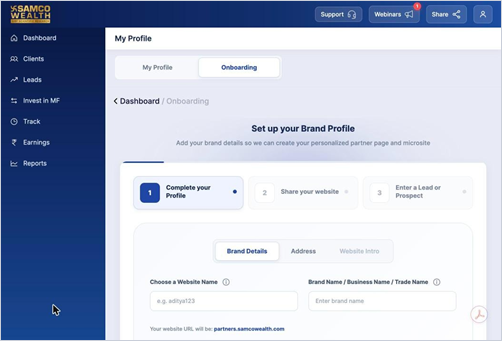
- Click the profile icon at the top right, select My Profile and open the Onboarding tab.
- Brand Details: choose a Website Name, enter your Brand Name, Business Name or Trade Name, and upload your logo. Click Proceed to Address.
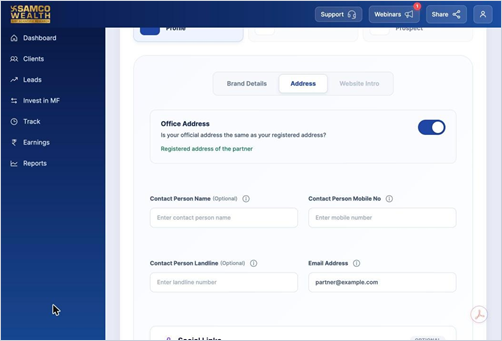
- Address: confirm whether your office address is the same as your registered address, then add contact person details, email address and social media links.
- Website Intro: write a short introduction under About your Company and add up to three USPs. Click Complete Profile.
- Share your website: copy your website link and referral link to share with clients and prospects.
- Enter a Lead or Prospect: add one lead (segment, name, mobile number, email address and lead source), or upload several at once using a CSV file. Once this is done, your microsite goes live.
Good to know
- Website Name must be unique and alphanumeric. It becomes your microsite address, for example yourname.partners.samcowealth.com.
- Logo: PNG only, up to 2 MB. Recommended size is 170 x 42 px.
- About your Company: up to 1,500 characters. USP description: up to 195 characters.
- Contact Person Name and Landline are optional.
- Bulk upload accepts up to 500 leads per CSV file. Use Download Sample CSV for the format. Leads that already exist are skipped.
Still have questions? We've got you
Just raise a ticket and our support team will get back to you with exactly what you need.