


How can I add my bank account during empanelment on the Partner Portal?
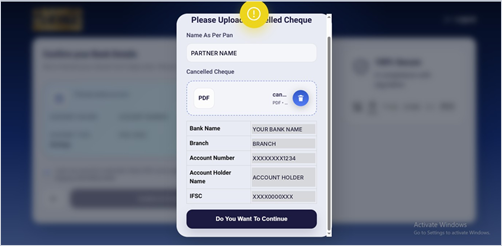
Your bank account is added by uploading a cancelled cheque. The bank details are read from the cheque for you to confirm.
Where to find it: Empanelment > Step 2 of 6 > Bank Details
Steps
- In the Please Upload Cancelled Cheque window, check your Name As Per PAN and upload your cancelled cheque.
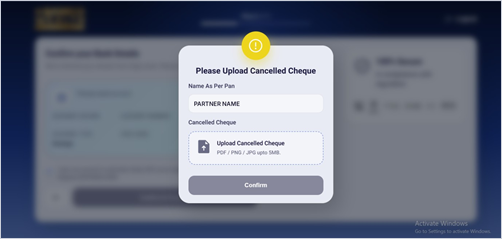
- Click Confirm.
- Check the bank name, branch, account number, account holder name and IFSC read from the cheque, and click Do You Want To Continue.
- On Confirm your Bank Details, review the details. Use the pencil icon if anything needs to be changed.
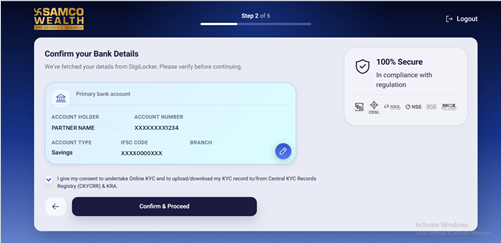
- Tick the consent box and click Confirm & Proceed.
Good to know
- The cancelled cheque can be a PDF, PNG or JPG, up to 5 MB.
- The bank account must be in your own name, as per your PAN. Your payouts are credited to this account.
Still have questions? We've got you
Just raise a ticket and our support team will get back to you with exactly what you need.