


How can I fill in entity details and add authorised signatories on the Partner Portal?
The Entity Details page asks for your entity’s registration details and the people authorised to sign for it. The fields shown depend on your entity type.
Where to find it: Empanelment (non-individual) > Entity Details
Steps
- Fill in the entity details. For an HUF, for example: entity name, entity PAN, date of formation, place of registration, Karta name, Karta PAN, Karta Aadhaar number, number of co-parceners and correspondence address.
- Enter the pincode. The city and state are filled in automatically.
- Under Authorised Signatories, enter each signatory’s full name, PAN, email ID, mobile number, Aadhaar number and designation.
- Tick This signatory will e-Sign the application for the person who will sign, and click Save Details.
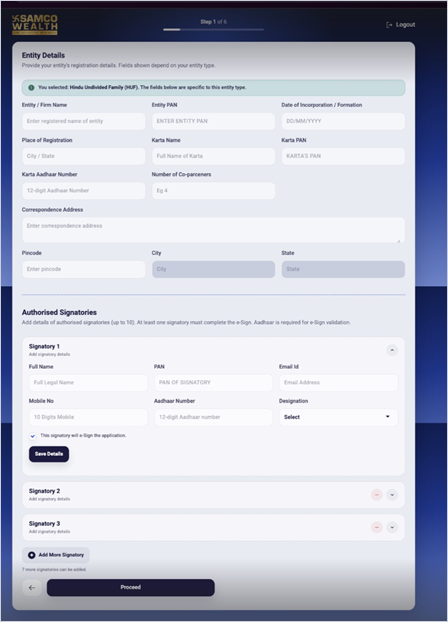
- Click Add More Signatory to add others, then click Proceed.
Good to know
- You can add up to 10 authorised signatories.
- At least one signatory must complete the e-sign, and their Aadhaar is required for e-sign validation.
Still have questions? We've got you
Just raise a ticket and our support team will get back to you with exactly what you need.