


How can I add notes to a lead on the Partner Portal?
Notes help you record each follow-up and update the lead’s status.
Where to find it: Leads > Active Leads > Action > Add Note
Steps
- Click Leads in the left menu.
- Find the lead and click the Add Note icon in the Action column.
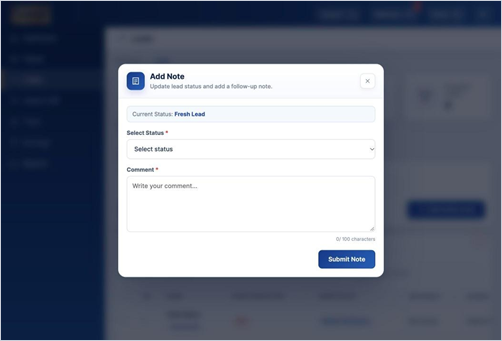
- Select the new status, for example Interested, Follow Up, Customer Busy, Call Back Later or Not Interested.
- Write a short comment and click Submit Note.
Good to know
- Comments can be up to 100 characters. The latest note appears in the Notes column.
- Other statuses include Ringing / Not Reachable, Customer Disconnected, Invalid Contact Details and Duplicate Lead.
Still have questions? We've got you
Just raise a ticket and our support team will get back to you with exactly what you need.